The full-screen interface
Run openternary with no arguments in a terminal, or openternary ui, to open the TUI. It puts runs, live job
progress, comparisons, the environment check and updates on one screen, and it runs the same commands as the CLI.
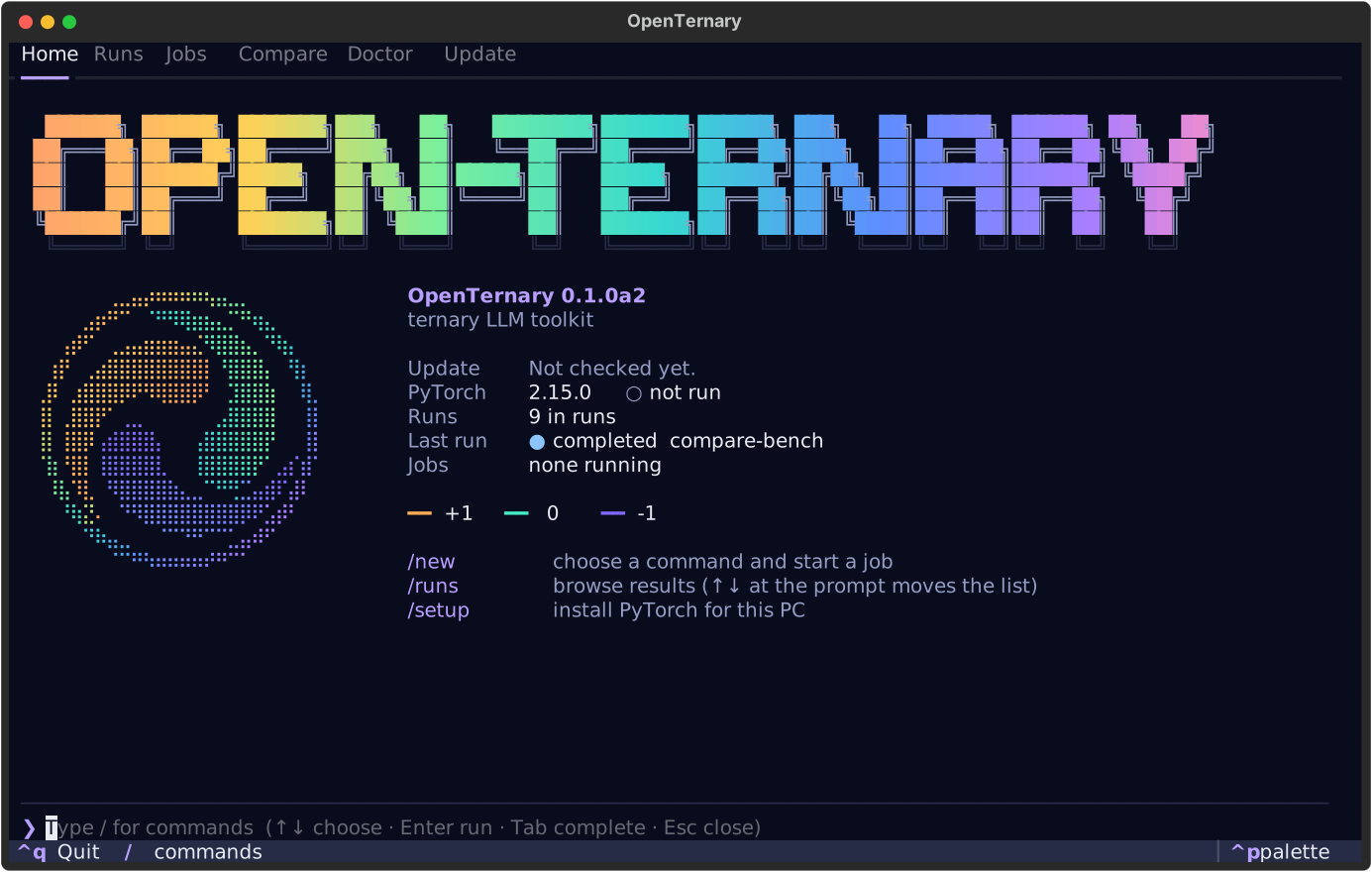
openternary                    # in a terminal with no arguments
openternary ui --runs results  # explicitly, with a different runs folder (default: runs)
When it opens
The TUI opens only in an interactive terminal: both stdin and stdout must be a TTY. In a pipe, in CI (the
CI variable is set), with TERM=dumb or with OPENTERNARY_NO_TUI=1, plain openternary prints the
help and exits with code 2 as it always did. openternary ui exits with code 2 and says why. Scripts
are never caught by a full-screen program.
Everything starts at the ❯ prompt
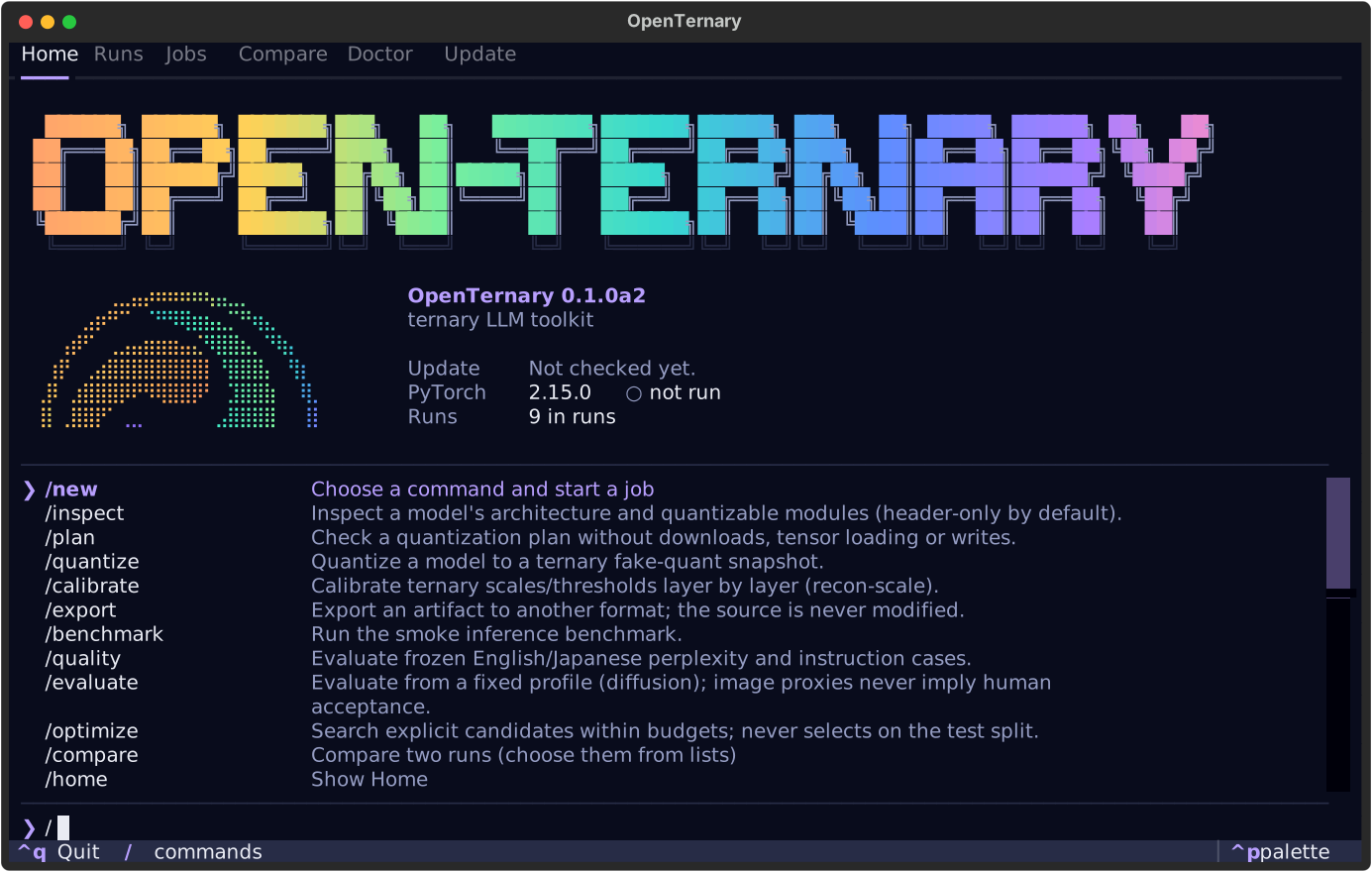
There are no buttons. The input line at the bottom works like a coding agent's command line: type / to
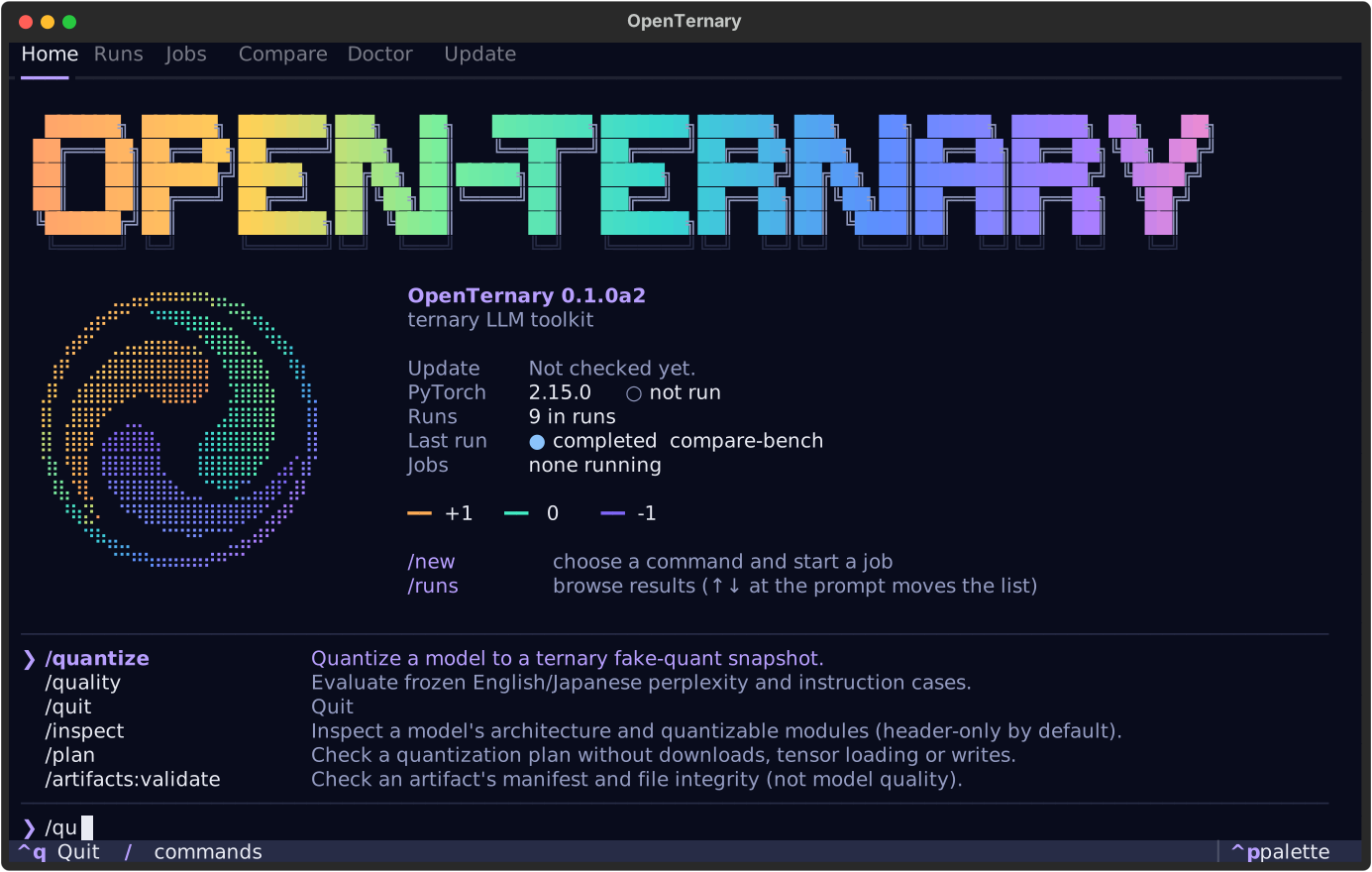
list the commands, and keep typing to filter them.
| Key | At the prompt |
|---|---|
| / | Open the command list (from anywhere) |
| letters | Filter: names starting with the text first, then names containing it, then descriptions containing it |
| Up Down | Move through the list. With the list closed, move through the current tab's table |
| Enter | Run the highlighted command |
| Tab | Complete the highlighted command, so you can type arguments after it |
| Esc | Close the list, or clear the line |
| Ctrl+Q | Quit (also /quit) |
Commands
| Command | What it does |
|---|---|
/new |
Choose any command from a list, then fill in its form |
/quantize, /calibrate, /benchmark, … |
Open that command's form. Add arguments to skip the form and go straight to the plan: /quantize tiny-llama --device cpu |
/compare |
Pick the baseline, then the candidate, from your runs, then open the compare form |
/home, /runs, /jobs, /doctor, /update |
Show that tab (the number keys 1 to 6 also switch tabs) |
/baseline, /candidate |
Mark the run highlighted in Runs as the baseline or candidate for /compare |
/cancel |
Cancel the highlighted job |
/delete |
Delete the highlighted run (asks you to type its name) |
/probe |
doctor --probe-runtime: test PyTorch on the device |
/setup |
Install PyTorch for this PC (openternary setup) |
/upgrade |
Run openternary update |
/check |
Check PyPI for a newer version now |
/refresh |
Reload runs, jobs and the environment check |
/cache:remove, /artifacts:validate, … |
Commands in a group are joined with : |
/doctor and /update show tabs. The commands of the same name are /probe and /upgrade.
Starting a job: form → plan → start
-
Form. Choosing a command opens a form generated from the CLI's own definition, so it always has the same options as
openternary <command> --help. Enter moves to the next field.--json,--events-jsonl,--quiet,--dry-runand--yesare not shown because the TUI handles them. Press Ctrl+S to review. -
Plan. The plan screen shows the exact command line and the output of that command's own
--dry-run. Start stays unavailable, greyed out and skipped by the❯, until the dry run has succeeded. If the dry run fails, you see why and cannot start.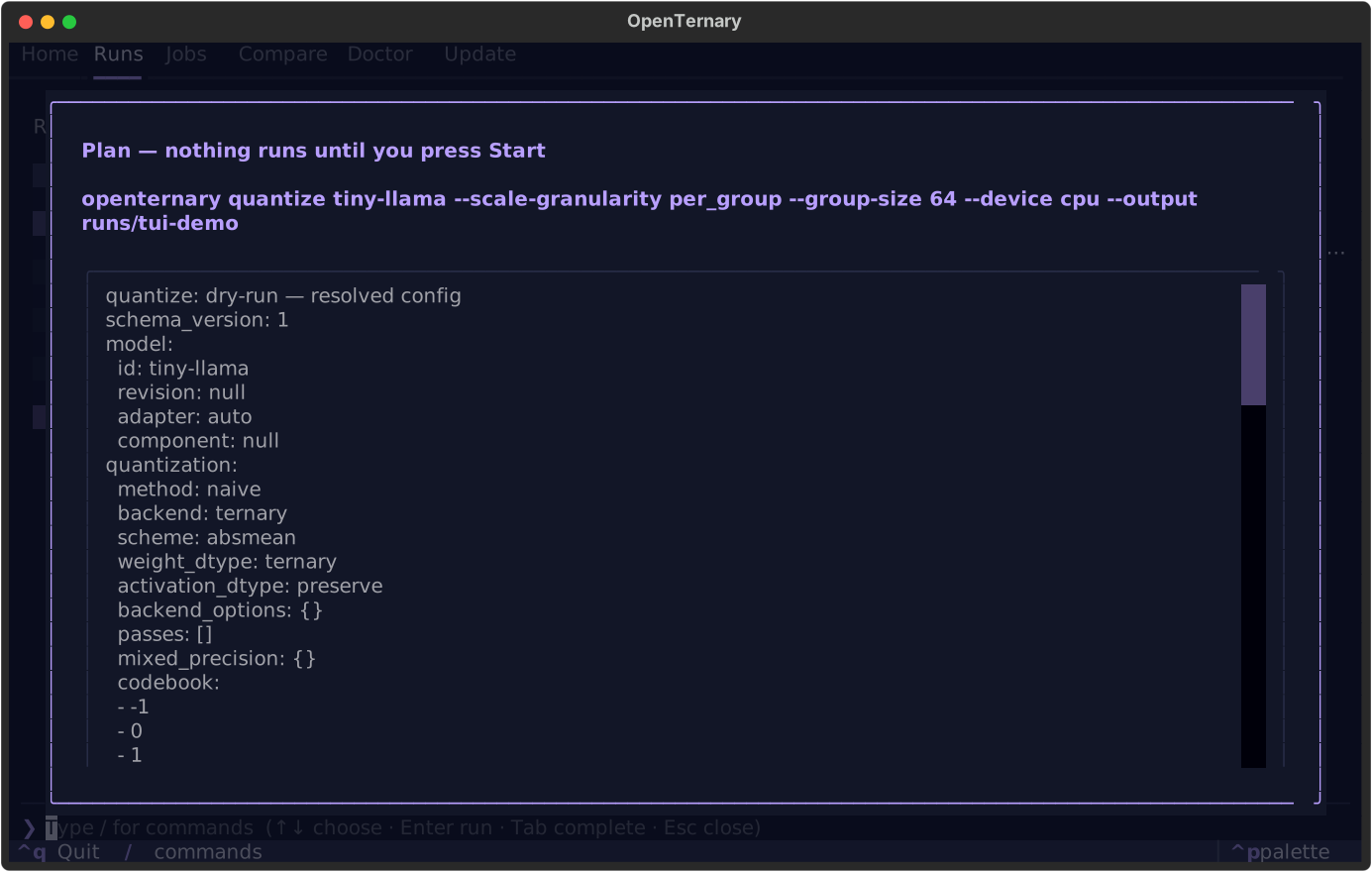
-
Start. The job runs in the background. For
setupandupdate, choosing Start on this screen stands in for--yes.
Confirmation screens for plans, deletion, cancelling and quitting all work the same way: move the ❯ with
Up Down and press Enter.
Jobs: live progress
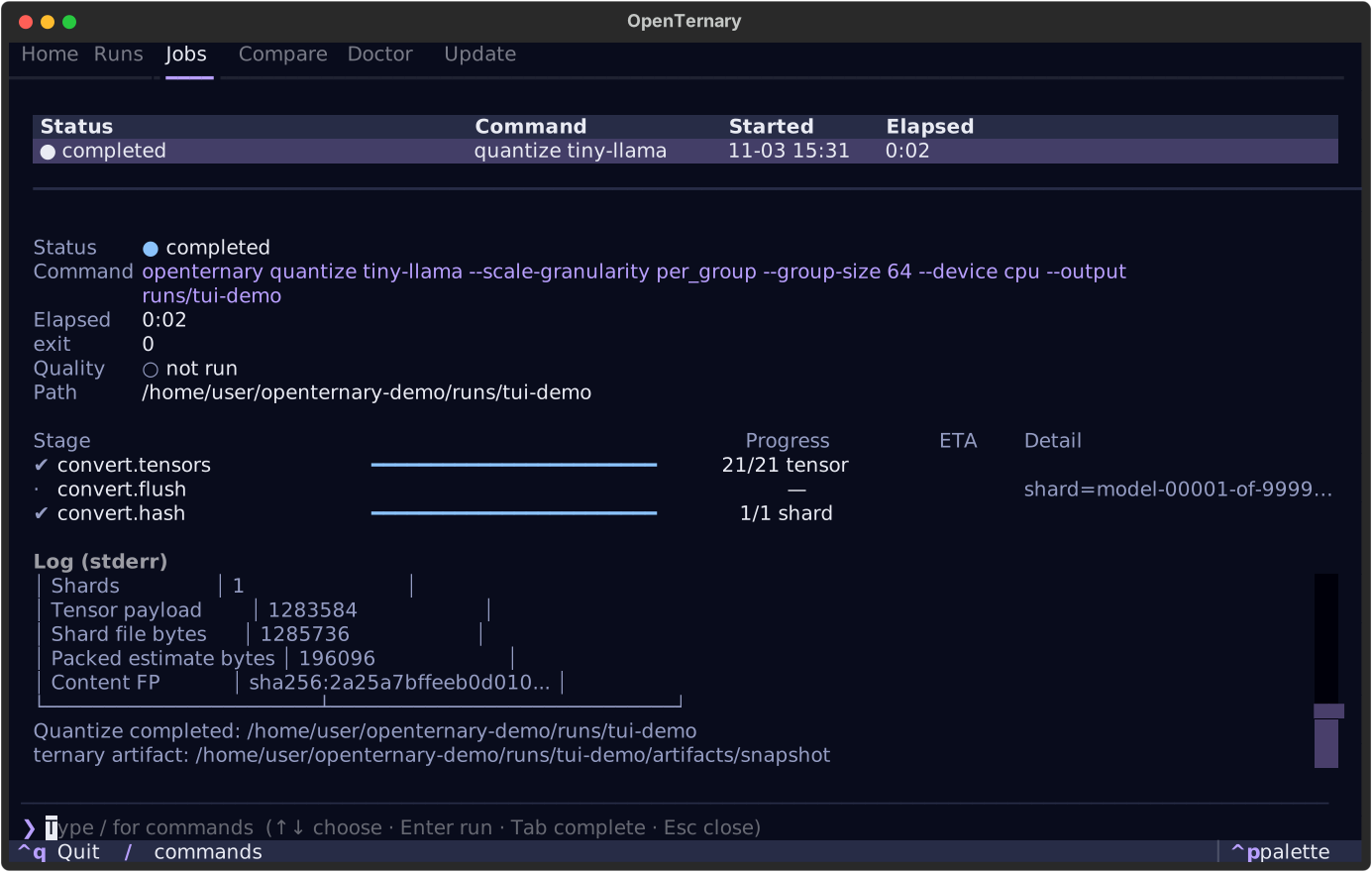
Each job is the ordinary CLI running in a child process:
The TUI reads the progress events the job writes and shows each stage with a progress bar, its rate and an ETA, plus the end of the job's log. Because the work happens in a separate process:
- results, exit codes, JSON, run locks and
last_failure.jsonare exactly the same as from a script; - if a job runs out of memory and dies, the TUI does not go down with it;
- closing the TUI does not stop jobs on Linux and macOS, and reopening it resumes monitoring. On Windows, closing the terminal window also stops the jobs running in that console.
| Key (Jobs table focused) | |
|---|---|
| N | New job |
| K | Cancel the highlighted job |
Cancelling asks how. Cancel sends an interrupt: SIGINT to the process group on Linux and macOS, Ctrl+Break
on Windows. The command stops cleanly, exits with code 130 and records the failure in its run. Force stop
kills the process tree immediately, and nothing is recorded.
Job records are kept in %LOCALAPPDATA%\openternary\jobs on Windows and $XDG_STATE_HOME/openternary/jobs
(by default ~/.local/state/openternary/jobs) elsewhere. Set OPENTERNARY_STATE_DIR to put them somewhere else.
The newest 200 are kept.
Runs
The Runs tab lists the run folders in runs/, or the folder given with --runs, newest first, with
status, quality verdict, kind and name. The right side shows the highlighted run's details and files.
| Key (Runs table focused) | |
|---|---|
| B / C | Use as baseline / candidate for compare |
| X | Delete the run |
| R | Refresh |
Deletion asks you to type the run's name. Only a run folder directly inside the runs folder, with its own
metrics.json and config.yaml, can be deleted, and a run that another process is using (it holds
.execution.lock) is refused. cache remove --execute asks for the target's name in the same way.
Other tabs
- Compare: shows the chosen baseline and candidate.
/comparepicks them from lists. - Doctor: the same report as
openternary doctor./proberuns the device test. - Update: the installed and latest version.
/checkasks PyPI now, and/upgraderunsopenternary update.
Language, colour and motion
- The TUI follows
OPENTERNARY_LANG=en|ja, or your OS language if that is not set. OPENTERNARY_REDUCED_MOTION=1orNO_MOTION=1stops the spinning symbol.OPENTERNARY_NO_UPDATE_CHECK=1stops the update check (it runs at most once a day otherwise).